-->
≡
Home
Woman
Sport
Business
Health
Privacy Policy
Contact Us
Contact Us
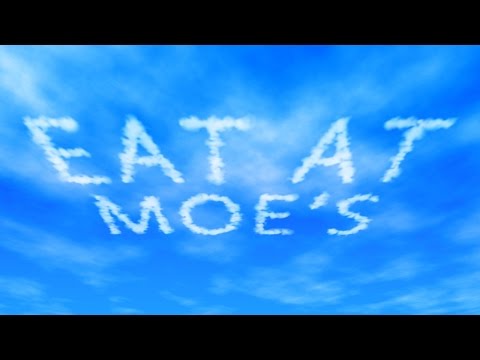
Photoshop Tutorial: Skywriting! How to Write in the Clouds!
:
:
2017-05-15T01:58:21Z
Monday, 15 May 2017 - 01:58 AM
Hi. This is Marty from Blue Lightning TV.
I'm going to show you how to create a vast, blue sky with cirrus, white clouds and realistic,
sky-written text from scratch.
This is an update of a tutorial I did quite awhile ago on an earlier version of Photoshop.
Create a new document by pressing Ctrl + N on Windows or Cmd + N on a Mac.
Make its Width: 1920 pixels, its Height: 1080 pixels and its Resolution: 150 pixels per inch.
The Color Mode is RBG and 8 bits per Channel.
Click "Create" or "OK".
Open your Gradient Tool and make sure the "Linear Gradient" icon is active.
Click the gradient bar to open the Gradient Editor.
Click the lower, left Stop and the color box.
In the hexadecimal filed, type in: 42BAFF.
Then, click OK.
Click the lower, right Stop, the color box and type in: 0048FF.
Then, press Enter or Return twice to close both windows.
Go to the bottom of your document and press and hold Shift as you drag the Gradient Tool to the top.
Then, release.
Next, we'll create the cirrus clouds.
Click the New Layer icon to make a new layer.
Let's name it, "Clouds".
Open your Eyedropper Tool and click the color on the bottom of your document to copy the color.
You'll notice that your foreground color is now that color.
Go to Filter, Render and Clouds.
Change its Blend Mode to "Pin Light".
Next, we’ll put the clouds in perspective.
First, zoom out of your document by pressing Ctrl or Cmd and the minus key on your keyboard
a few times until it's approximately this size.
I zoomed out to 25%.
Go to Edit, Transform and Perspective.
Go to a top corner and drag it out approximately this much.
Then, release.
Next, we'll fade the clouds as it gets closer to the bottom.
First, let's zoom in a bit by pressing Ctrl or Cmd and the plus key once on your keyboard once.
Click the Layer Mask icon to make a layer mask next to the clouds.
Make sure your foreground color is now black.
Open your Brush Tool and Brush picker.
Make the Size: 1100 pixels and the Hardness: 0%.
Then, press Enter or Return.
Make the Opacity: 50% and keep the Flow: 100%.
Place your Brush Tool, so it's approximately halfway below the bottom of your document.
Then, drag it across once.
We can zoom back in now.
Next, we'll adjust the midtones to give our sky more punch.
Click the Adjustment Layer icon and click "Levels".
Go to the Input Midtone slider and drag it to the right approximately this much.
We're ready to add our text.
Open your Horizontal Type Tool and pick an ultra-thin font.
I'm using "Kozuka Gothic Pro Extra Light".
If you'd like to use it, I provided its link in my video's description of project files below.
I''ll make its size 190 points, however, feel free to adjust this size depending on the
font you pick and the amount of characters in your text.
Make it Sharp, Center Alignment and white the color.
Click on your document and type out your text.
If you have more than one line of text, we'll adjust the space between the lines to be approximately this much.
To do this, click this icon to open the Character / Paragraph panels.
Double-click the large "T" of your text layer to highlight all your lines.
Go to the Baseline shift" icon and drag it to the right or left to adjust your text's line spacing.
We can close the text panels now.
To adjust the space between the characters, also called "tracking", press and hold Alt
or Option as press the right or left arrow key on your keyboard.
We want the tracking to be approximately this much.
To center your text on the document, open your Move Tool and press and Ctrl or Cmd +
A to selection your canvas. Then, click the "Align Horizontal Centers" icon.
To deselect it, press Ctrl or Cmd + D. Ctrl-click or Cmd-click the large "T" to make a selection
of your text's shape.
Open your Paths panel.
If you don't see it, go to Window and Paths.
Click the icon at the upper, right corner and click "Make Work Path".
Keep the default Tolerance of 0.5 pixels and click OK.
Open back your Layers panel and press "B" on your keyboard to open your Brush Tool.
Press the "F5" key at the top of your keyboard to open your Brush panel.
I already created and saved a skywriting clouds "clouds" brush, which I'll open.
I'll show you the settings to create it.
First, click "Brush Tip Shape".
Make the Size: 125 pixels, the Angle: 0 degrees, the Roundness: 100% and the Hardness: 0%.
Check "Spacing" and make it 25%.
Click "Shape Dynamics".
The "Size Jitter" is 100% and all "Controls" are "Off".
The "Minimum Diameter" and the "Angle Jitter" are both 0%.
The "Roundness Jitter is 30% and the "Minimum Roundness is 25%.
Check the Flip X and Y Jitters.
Click "Texture".
Click the arrow next to the pattern box and click the gear icon.
Click “Patterns”.
When you see this message, click OK to replace your current patterns with the new patterns.
Scroll down and click, “Clouds”.
Check “Invert”.
The Scale is 160% and the Brightness and Contrast are both 0.
Check "Texture Each Tip" and make the Blend Mode: Color Burn".
The Depth is 100%, the "Depth Jitter" is 0% and the "Control" is "Off".
Click "Transfer".
If you have an older version of Photoshop, this may be called, "Other Dynamics".
The "Opacity Jitter" is 20%, the "Controls" are Off and the "Flow Jitter" is 50%.
Check "Smoothing".
Click the "New Preset" icon to save your settings.
Name it "Clouds" or "Skywriting" and check, "Capture Brush Size in Preset".
Then, click OK.
We can close the text panels now.
Increase the Brush's opacity to 100%.
Click the New Layer icon to make a new layer.
Name it, "Skywriting".
Hide the text layer and open your Paths panel.
Open the fly-out menu and click "Stroke Path".
Make sure the Brush Tool is selected and "Simulate Pressure is not checked.
Then, click OK.
To hide the paths, click on an empty area of your Paths panel.
We'll blur our skywriting text slightly to blend it in better with the sky.
But, first, we'll convert our skywriting into a Smart Object, so we can modify it non-destructively.
Open back your Layers panel and the fly-out menu.
Click "Convert to Smart Object".
Go to Filter, Blur and Gaussian Blur.
Blur it 3 pixels and click OK or press Enter or Return.
Next, we'll make our skywriting in perspective on the sky.
Open your Transform Tool by pressing Ctrl or Cmd + T. If you see this message, it's
just letting us know that the blur will be temporarily turned off while we use the Transform Tool.
Click OK.
Go to a corner and when you see a diagonal, double-arrow, press and hold Alt or Option
+ Shift as you drag the bounding box in approximately this much.
Press and hold Shift + Ctrl + Alt on Windows or Shift, Cmd + Option on a Mac as you go
back to the corner anchor point.
Your cursor should now appear as a white arrow head.
Drag the corner out approximately this much.
Go to the bottom, center anchor point and drag it up a little.
Continue to finesse it until your happy with its size and perspective.
Then, press Enter or Return.
This Marty from Blue Lightning TV. Thanks for watching!
Facebook
Twitter
Google Plus
Blue Lightning TV Photoshop
Latest Posts