-->
≡
Home
Woman
Sport
Business
Health
Privacy Policy
Contact Us
Contact Us
How to do Ntrboot method with R4i B9S Flashcart
:
:
2018-04-03T17:31:37Z
Tuesday, 3 Apr 2018 - 05:31 PM
Watch the video
click to begin
Youtube
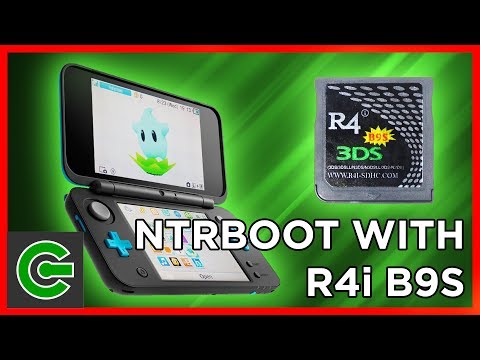
This video is part two of two ntrboot guides. And this time I will review about R4i B9S flashcart.
And I will show you how to install boot9strap using this flashcart on the latest 3DS firmware
First of all, I would like to say thank you once more to 3DS-FLASHCART.COM for sending me two flashcarts to review
They are one of the trusted flashcart sellers on the internet. So go ahead and go to their website to start shopping for 3DS stuff.
You can find the link to the 2018 R4i SDHC Gold Pro flashcart review in the description below
This video is all about the R4i B9S flashcart.
Let's open the box and see what is inside it
So you will get the flashcart
A USB micro SD card reader
And a little magnet
So again this is my New 2DSXL. It is running stock firmware 11.6.
Let's turn off the console for now
Get the R4i B9S flashcart.
Notice that I did not insert any micro sd card to the flashcart
Insert the flashcart into the console
Usually you can see the flashcart icon on the home screen. But not for this flashcart.
The flashcart is pre-flashed with ntrboot from the factory. So it won't be detected on the home screen.
Now let's prepare to mod the console. Turn off the console for now
Remove the console's micro sd card but leave the flashcart on its slot.
Go to this URL and download the ntrboot package
This is the ntrboot package and this is the console's micro SD card
Open the "To console sd card root" folder and drag all its content to the console's micro SD card
Reinsert the micro SD card to the console
Turn on the console and get the magnet.
Place the magnet near the ABXY button and find the sweet spot that makes the console sleep.
Remember the magnet position.
Now turn off the console
Place the magnet on the sweet spot.
Then press and hold X, Select and Start button, followed by the Power button.
If done properly, you will see the SafeB9SInstaller Screen.
Enter the combo keys to install boot9strap into the console
It will start installing the boot9strap to the console
Now you need to turn off the console. Pressing A will boot-loop the SafeB9SInstaller
So you need to press and hold the power button to turn off the console
Then remove the console's micro SD card and insert it into the computer
This is the ntrboot package and this is the console's micro SD card
Open the latest luma3ds folder and drag its content to the root of the console's micro sd card.
Then replace the existing file
Reinsert the micro SD card to the console
Soon after turning on the console, you will be greeted with the Luma3DS configuration screen.
Press the down button to select Show NAND or user string in System Settings then press A until you see the X mark inside the parenthesis
Then press Start to reboot the console.
Enter the system settings to find out the kernel version.
You should see the SYS prefix in front of the kernel version. It means that the custom firmware is running on the System NAND
Now go to the Internet Settings and turn off the spotpass
This method is known to prevent you for getting banned from the Nintendo network.
Turn off the Automatic Software Downloads
And disable the Sending of System Information to Nintendo
Now we will install some homebrew apps
Run the Download Play app. We will modify its function temporarily
Press and hold L, Down and Select button to open the Rosalina menu
Then choose Miscellaneous options...
Choose Switch the hb. title to the current app
Then press B button several times to go back then close the Download Play app
Reopen the Download Play app
It will open the Homebrew Launcher.
Run the FBI app
Navigate to SD and then enter the cias folder
Select the current directory
Then choose Install and delete all CIAs
Usually, pressing B button several times followed by pressing Start button will close the FBI app.
But for this case, you must press the Home button and close the FBI app alternatively.
Now you can unwrap all the newly installed titles
Now run the DSP1 app. This app is responsible for outputting sound for the homebrew app.
Just press B to install it and it will automatically deletes itself.
Now you can go to the system setting to update the console firmware if available.
As I made this video, the latest 3DS firmware version is 11.6
The system is already up to date, so you can close this system settings.
Now you can open the Luma3DS updater to find if a newer version is available to install.
As I made this video, the latest Luma3DS is version 9.0 and it is currently installed on the console.
Now we need to do some additional steps to complete the guide
Turn off the console
Press and hold Start and Power button to enter Godmode9
Press the Home button and choose Scripts
Now we need to install Luma3DS to the CTRNAND so you can boot the console without the need to insert the SD card.
Choose setup_ctrnand_luma3ds script
Choose Yes to continue
Then choose Yes again to unlock the SysNAND
And then enter the combo keys to proceed.
Then press A to continue
And press A again to relock the SysNAND
Now we need to backup the console's NAND
Choose Scripts and press Backup SysNAND
Press A to proceed
It is mandatory to backup the console's NAND so you can restore it if anything wrong happens.
Make sure you have at least 2GB or more space on the SD card or you will fail to backup the console's NAND.
Press A to continue
Now we will clean the SD card by removing some unused file.
Press the Home button and choose Scripts
Then choose cleanup_sd_card
Press A to proceed
Press A to continue
Then press Start to reboot the console
You have completed the guide to mod your console with R4i B9S flashcart.
If you want to flash or restore the flashcart to its original function to play nds games,
then you should continue watching the video until the end
Turn off the console
Remove the console's micro SD card
And remove the flashcart from the console
Then prepare another micro SD card for the flashcart.
Now we need to download the flashcart kernel. Go to this URL
And download the kernel of your choice.
Then you need to download the B9S Flasher. This app will help you restore the flashcart to play nds games.
Go to this URL
And download the B9S Flasher
This is the flashcart kernel archive
And this is the B9S Flasher
This is the console's micro SD card
Open the flashcart's kernel archive and drag all its content to the flashcart's micro sd card.
Then open the B9S Flasher
Open the Luma folder and enter the Payloads folder inside the console's micro SD card.
And drag the r4i-sdhc.firm file to this folder
Then create a new folder named ntrboot at the root of the console's micro sd card
And drag the r4i-sdhc.bin file to the ntrboot folder
Insert the flashcart's micro sd card to the flashcart then insert it into the console
Then insert the console's micro sd card into the console
Press and hold Start and power button to enter Luma3DS configuration screen.
Then choose r4i-sdhc
This app will restore the flashcart to its original function which is capable of loading nds games.
Select Restore Red Flash
It will begin restoring the flashcart. Please be patient.
The press Reboot
Now you can see the flashcart icon on the home screen.
Try loading the flashcart.
You can now add nds format games to your flashcart's micro sd card.
Now you have 100% completed the guide.
You can start installing cia format games and apps using FBI.
Thank you for watching this video. I hope you liked it. Please subscribe for more upcoming videos
How to Install NTR CFW on Nintendo 3DS How to install Freeshop (updated guide) How to run PS4 exploit offline using ESP-12E (ESP8266) How to change Nintendo 3DS region and language 3DS Custom Firmware : NTRBOOTHAX Guide with R4i Gold 3DS Plus How to convert PS4 game disc to PKG format How to do Ntrboot method with R4i Gold Pro 2018 flashcart How to stream 3DS Screen to Computer using SNICKERSTREAM How to update LUMA3DS to 9.0 How to convert, install and play GBA games on 3DS
Facebook
Twitter
Google Plus
Latest Posts